Tampilkan postingan dengan label Motorola. Tampilkan semua postingan

Motorola Defy Mini XT321 & XT320 QSG User Manual

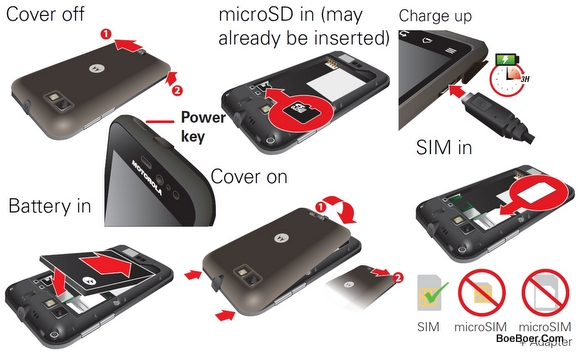
Motorola Defy Mini XT321 & XT320 QSG User Manual Guide - your phone isn't indestructible, so to avoid damage from natural elements, such as water, sand and dust intrusion, always make sure that the battery door cover and connector covers are closed and secure.
Motorola Defy Mini XT321

If your phone gets wet and/or dirty:
Wipe with a soft cloth and shake to remove excess
water from the entire phone, especially the display
screen, speaker and microphone ports. 
Allow your phone to air-dry for at least 1 hour before
using it again. 
Always make sure you clean all dirt and debris from
the battery door cover/seals and connector covers.
Note: Your phone is not designed to float or work underwater.

In very limited circumstances, such as where your phone has been exposed to extreme heat, you may see
"Cool down" messages. To avoid possible damage to your battery and phone, you should follow these
instructions until the phone is within its recommended temperature range. When your phone is in "Cool down" mode, only emergency calls can be made.

Emergency calls

Note: Your service provider programs one or more emergency phone numbers that you can call under any
circumstances, even when your phone is locked. Emergency numbers vary by country. Your pre-programmed emergency number(s) may not work in all locations and sometimes an emergency call cannot
be placed due to network, environmental or interference issues.

1 Touch (if your phone is locked, then
touch Emergency call).

2 Enter the emergency number.

3 Touch Call to call the emergency number.

Note: Your phone can use location based services (GPS and AGPS) to help the emergency services find you. See "Location services" in your legal and safety information.

You can read more to be to download. For the download links, you can get by clicking the links below:

Download User Guide of Motorola Defy mini XT320/XT321 | Language: English | Page: 48 | PDF Size: 8.63MB

Download Getting Started Guide (GSG/QSG) of Motorola Defy mini XT320/XT321 | Language: English | Page: 70 | PDF Size: 17.01MB


Motorola RAZR i User Manual, XT890 Getting Started Guide

Motorola RAZR i User Manual, XT890 Getting Started Guide 

But if you want to make it just like the first time your experienced with your phone (factory default settings) you can do factory data reset action: Hard / Master reset. To do this just go to Apps > Settings > Privacy > Factory data reset > Reset phone.

Motorola RAZR i which is also known by its series XT890 comes with large 4.3 inches touchscreen display (measured diagonally). The touchscreen uses Super AMOLED Advanced capacitive touchscreen display with 540 x 960 pixels resolution. It’s protected by Coring Gorilla Glass along side with the splash resistant body design for strong durability performance. One important thing, the phone works under GSM data networks technology (3G HSDPA supports) and it uses micro SIM for its provider SIM card.

Quick start: Control & customise

Take control of your phone:

• Touch: it’s all in the touch. Simple gestures and touch
keys to move about.

• Speak: tell your phone what you want—touch
Apps> Voice commands.

• Customise: change notifications or display
settings—flick the status bar down and touch

Cool down

In very limited circumstances, such as where your phone has been exposed to extreme heat, you may see "Cool down" messages. To avoid possible damage to your battery and phone, you should follow these instructions until the phone is within its recommended temperature range. When your phone is in "Cool down" mode, only emergency calls can be made.

For the User Guide, just follow the links below:

Download User Guide of Motorola RAZR i | Language: English | PDF Size: 6MB | Page: 72
Download Getting Started Guide of Motorola RAZR i | Language: English | PDF Size: 3.83MB | Page: 2


Motorola Defy Mini User Manual Guide

Motorola Defy Mini User Manual Guide Download Pdf Instruction Setting -  this specification is much more minimal when compared with the standard version of the Motorola Defy. But the matter of resistance both collided with a draw, able to withstand shock and splash resistant. Therefore, it is worth it when you are happy outdoor activities carry the Motorola Defy Mini.
Motorola Defy Mini

Recent calls
To show recent calls, touch  > Call log.
  • To call, text, open or save an entry, touch and hold it.
  • To clear the list, touch Menu  > Clear call log.
Conference calls
To start a conference call, call the first number. After they answer, touch Add call and call the next number. When the next number answers, touch Merge calls. To remove individual callers, touch Manage.
Call waiting
If you are on a call and a new call arrives:
  • With call waiting on, touch  and flick to , to answer the new call and put the old call on hold. Then, touch Swap to switch between calls, or Merge calls to combine them.
  • With call waiting off, the new call goes straight to your voicemail.
To turn on call waiting, touch Menu  > Settings > Call settings > Call feature settings > Additional settings > Call waiting.

Here you are the User Guide PDF Manual Copy / for Motorola Defy Mini irectly from Motorola official website. Motorola Defy Mini user guide in English, Download from the Links below

[Download Motorola Defy Mini User Manual Guide]


Motorola ATRIX 2 User Manual Guide

Motorola ATRIX 2 User Manual Guide - Motorola Atrix 2 or the so-called by the name of Edison now comes with a more clear pictures and include them with more detailed specifications of course. Motorola Edison uses the Android operating system is the Motorola Blur 2.3.5 version much better.

Motorola Atrix 2 has a different design to the previous, now atrix 2 comes with a thinner body size that fits in your gemgaman, the new design is also available on atrix 2 is located on a layout which is no longer using PenTile matrix layout of the screen Atrix. However, using the superior RGB layout and commonly used.
Motorola ATRIX 2
Google Images
Motorola Atrix 2 has a 4.3-inch landscape display with the same resolution is qHD. Motorola Atrix 2 or Edison uses a dual-core 1GHz TI OMAP with PowerVR SGX 540 GPU and has 1GB of RAM, as well as in the droid bionic, has 8GB of internal memory along with a microSD card slot card.

Motorola Atrix 2 or Edison had pinned an HDMI port on the side next to the USB port and can work with a dock for the Atrix WebTop that made ​​the first edition. Motorola Edison using HSPA + network, and not on the LTE network AT & T. Edison also has a fingerprint scanner found in the Atrix.

Here you are the User Guide PDF Manual Copy/for Motorola ATRIX 2 directly from Motorola official website. Motorola ATRIX 2 user guide in English, Download from the Links below
[Download Motorola ATRIX 2 User Manual Guide]