Tampilkan postingan dengan label Motorola. Tampilkan semua postingan

Motorola Defy Mini XT321 & XT320 QSG User Manual

Motorola Defy Mini XT321 & XT320 QSG User Manual Guide - your phone isn't indestructible, so to avoid damage from natural elements, such as water, sand and dust intrusion, always make sure that the battery door cover and connector covers are closed and secure.
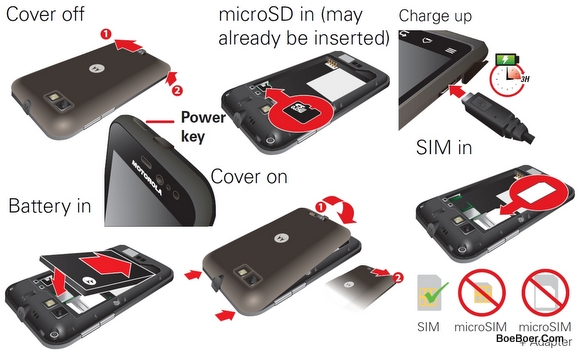
Motorola Defy Mini XT321

If your phone gets wet and/or dirty:
Wipe with a soft cloth and shake to remove excess
water from the entire phone, especially the display
screen, speaker and microphone ports. 
Allow your phone to air-dry for at least 1 hour before
using it again. 
Always make sure you clean all dirt and debris from
the battery door cover/seals and connector covers.
Note: Your phone is not designed to float or work underwater.

In very limited circumstances, such as where your phone has been exposed to extreme heat, you may see
"Cool down" messages. To avoid possible damage to your battery and phone, you should follow these
instructions until the phone is within its recommended temperature range. When your phone is in "Cool down" mode, only emergency calls can be made.

Emergency calls

Note: Your service provider programs one or more emergency phone numbers that you can call under any
circumstances, even when your phone is locked. Emergency numbers vary by country. Your pre-programmed emergency number(s) may not work in all locations and sometimes an emergency call cannot
be placed due to network, environmental or interference issues.

1 Touch (if your phone is locked, then
touch Emergency call).

2 Enter the emergency number.

3 Touch Call to call the emergency number.

Note: Your phone can use location based services (GPS and AGPS) to help the emergency services find you. See "Location services" in your legal and safety information.

You can read more to be to download. For the download links, you can get by clicking the links below:

Download User Guide of Motorola Defy mini XT320/XT321 | Language: English | Page: 48 | PDF Size: 8.63MB

Download Getting Started Guide (GSG/QSG) of Motorola Defy mini XT320/XT321 | Language: English | Page: 70 | PDF Size: 17.01MB


Motorola RAZR i User Manual, XT890 Getting Started Guide

Motorola RAZR i User Manual, XT890 Getting Started Guide 

But if you want to make it just like the first time your experienced with your phone (factory default settings) you can do factory data reset action: Hard / Master reset. To do this just go to Apps > Settings > Privacy > Factory data reset > Reset phone.

Motorola RAZR i which is also known by its series XT890 comes with large 4.3 inches touchscreen display (measured diagonally). The touchscreen uses Super AMOLED Advanced capacitive touchscreen display with 540 x 960 pixels resolution. It’s protected by Coring Gorilla Glass along side with the splash resistant body design for strong durability performance. One important thing, the phone works under GSM data networks technology (3G HSDPA supports) and it uses micro SIM for its provider SIM card.

Quick start: Control & customise

Take control of your phone:

• Touch: it’s all in the touch. Simple gestures and touch
keys to move about.

• Speak: tell your phone what you want—touch
Apps> Voice commands.

• Customise: change notifications or display
settings—flick the status bar down and touch

Cool down

In very limited circumstances, such as where your phone has been exposed to extreme heat, you may see "Cool down" messages. To avoid possible damage to your battery and phone, you should follow these instructions until the phone is within its recommended temperature range. When your phone is in "Cool down" mode, only emergency calls can be made.

For the User Guide, just follow the links below:

Download User Guide of Motorola RAZR i | Language: English | PDF Size: 6MB | Page: 72
Download Getting Started Guide of Motorola RAZR i | Language: English | PDF Size: 3.83MB | Page: 2


Motorola Defy Mini User Manual Guide

Motorola Defy Mini User Manual Guide Download Pdf Instruction Setting -  this specification is much more minimal when compared with the standard version of the Motorola Defy. But the matter of resistance both collided with a draw, able to withstand shock and splash resistant. Therefore, it is worth it when you are happy outdoor activities carry the Motorola Defy Mini.
Motorola Defy Mini

Recent calls
To show recent calls, touch  > Call log.
  • To call, text, open or save an entry, touch and hold it.
  • To clear the list, touch Menu  > Clear call log.
Conference calls
To start a conference call, call the first number. After they answer, touch Add call and call the next number. When the next number answers, touch Merge calls. To remove individual callers, touch Manage.
Call waiting
If you are on a call and a new call arrives:
  • With call waiting on, touch  and flick to , to answer the new call and put the old call on hold. Then, touch Swap to switch between calls, or Merge calls to combine them.
  • With call waiting off, the new call goes straight to your voicemail.
To turn on call waiting, touch Menu  > Settings > Call settings > Call feature settings > Additional settings > Call waiting.

Here you are the User Guide PDF Manual Copy / for Motorola Defy Mini irectly from Motorola official website. Motorola Defy Mini user guide in English, Download from the Links below

[Download Motorola Defy Mini User Manual Guide]


Motorola ATRIX 2 User Manual Guide

Motorola ATRIX 2 User Manual Guide - Motorola Atrix 2 or the so-called by the name of Edison now comes with a more clear pictures and include them with more detailed specifications of course. Motorola Edison uses the Android operating system is the Motorola Blur 2.3.5 version much better.

Motorola Atrix 2 has a different design to the previous, now atrix 2 comes with a thinner body size that fits in your gemgaman, the new design is also available on atrix 2 is located on a layout which is no longer using PenTile matrix layout of the screen Atrix. However, using the superior RGB layout and commonly used.
Motorola ATRIX 2
Google Images
Motorola Atrix 2 has a 4.3-inch landscape display with the same resolution is qHD. Motorola Atrix 2 or Edison uses a dual-core 1GHz TI OMAP with PowerVR SGX 540 GPU and has 1GB of RAM, as well as in the droid bionic, has 8GB of internal memory along with a microSD card slot card.

Motorola Atrix 2 or Edison had pinned an HDMI port on the side next to the USB port and can work with a dock for the Atrix WebTop that made ​​the first edition. Motorola Edison using HSPA + network, and not on the LTE network AT & T. Edison also has a fingerprint scanner found in the Atrix.

Here you are the User Guide PDF Manual Copy/for Motorola ATRIX 2 directly from Motorola official website. Motorola ATRIX 2 user guide in English, Download from the Links below
[Download Motorola ATRIX 2 User Manual Guide]


Motorola Razr Maxx User Manual Guide

Motorola Razr Maxx user manual guide free pdf download instruction book online operating Setting Troubleshooting Support - Motorola Mobility introduced simultaneously two new smartphones, the Motorola RAZR and Motorola RAZR Maxx V. Both will land in Indonesia, India, Malaysia, Singapore and Thailand. Both RAZR Maxx and V using the iconic RAZR design, Kevlar fiber, and anti-scratch screen Corning Gorilla Glass.
Google Images
The first Smartphone, Motorola RAZR Maxx carries the operating system Android 2.3 (Gingerbread), and could rise to the level of the Android 4.0 (Ice Cream Sandwich). This smartphone has a 4.3-inch Super AMOLED Advanced. RAZR Maxx is fairly thin and slim, as only awarded thickness of 8.99mm. Remarkably, this smartphone can last up to 17.6 hours of talk time on a single charge.

At the back of the body, embedded-quality 8 megapixel camera with 1080p video capture advantage for sharp and clear images. While adopting HD front camera.

[Download Here Motorola Razr Maxx User Manual Guide]


Motorola DROID RAZR MAXX HD User Manual Guide

Motorola DROID RAZR MAXX HD user manual guide free pdf download instruction book online operating Setting Troubleshooting Support -  Motorola Droid RAZR Maxx is a world phone that can run on both GSM and CDMA networks plus smartphone is capable of running on LTE network.

Motorola Droid RAZR HD, Droid RAZR Maxx HD, and Droid RAZR M have in common in the processor, RAM, and operating system. All three use the same Snapdragon S4 MSM8960 1.5GHz dual-core processor, 1GB RAM, and operating system Android 4.0.4 Ice Cream Sandwich (ICS). ICS Android operating system in the third smartphone to be updated to the Jelly Bean at the end of this year.
Motorola DROID RAZR MAXX HD
Google Image
Motorola Droid RAZR Maxx HD comes with a dual-core 1.5 GHz Snapdragon S4 speed, 4G LTE connectivity, 1GB RAM, features NFC, microSD slot, 8 megapisel rear camera, 4.7-inch screen (1196 x 720 pixels) technology and has a density of 331ppi ColorBoost .

The operating system Motorola Droid RAZR Maxx HD using the Android 4.0 Ice Cream Sandwich that has been coated with the latest version of MOTOBLUR UI. Motorola RAZR MAXX HD 3300 mAh battery comes with an internal memory of 32 GB.
[ Download Here Motorola DROID RAZR MAXX HD User Manual Guide ]


Motorola DROID RAZR HD User Manual Guide

Motorola DROID RAZR HD user manual guide free pdf download instruction book online operating Setting Troubleshooting Support - First launched for Verizon's network. What we're looking at below is the flagship model of the DROID RAZR MAXX them in HD and HD RAZR. Both smartphones are almost identical as last year, only one offers a large 3300 mAh battery.

Section has a screen 4.7-inch Super AMOLED HD display (1280 x 720p) with the navigation buttons on the screen, Android 4.0 Ice Cream Sandwich for the official release, Motorola has promised an update to Android 4.1 will be coming soon. RAZR HD has a very thin thickness of 8.3mm.
Google Images
Other specifications to complement this phone is a 1.5 GHz dual-core Snapdragon S4 processor, 1GB of RAM, 32GB of internal storage, micro-SD and HDMI support, 4G LTE. Back camera has an 8 megapixel sharpness, while the VGA front camera, and a large battery capacity. Motorola chose to install 2530 mAh battery for the RAZR HD. Then pair the 3300 mAh battery in the MAXX HD gives you over 21 hours of talk time.
[Download Motorola DROID RAZR HD User Manual Guide]


Motorola Defy Mini User Manual Guide

Motorola Defy Mini user manual guide free pdf download instruction book online operating Setting Troubleshooting Support - The design is as the name suggests the Mini than its predecessor Mororola Fire XT530, phone only has a 3.2-inch screen size (320 x 480 pixels) with body dimensions of 109 x 58.5 x 12.6 mm and weighs 107 grams, which is interesting in this phone is the protective glass the screen is using Corning Gorilla Glass, which proved successful melindugi screen from scratches and the risk of rupture due to impact. Haya screen color depth extent of 256 thousand.
Motorola Defy Mini
Google Images
The internal memory is embedded in the Motorola Defy Mini is small only 512 MB ​​and will only be found approximately 70 MB of free internal storage space, a shortage of its own for the Motorola Defy Mini for Android phone so greedy for memory storage. external memory can be expanded up to 32 GB. Processors are owned by Motorola Defy Mini 600 MHz terbilag merely smaller than its predecessor.

Camera-owned Motorola Defy Mini is only 3.15 MP, 2048x1536 pixels, LED flash is still inferior to Motorola Fire XT530 which has a 5MP degan purchase price under the Motorola Defy Mini. and already dilegkapi with VGA front Kamea.

Android 2.3.6 Gingerbread Operating System into the lives of the Motorola Defy Mini, dilegkapi MotoSwicth UI that is different from its predecessors, which clearly display a fuller face and more indulgent fingers in surfing everything on this phone.

Here you are the User Guide PDF Manual Copy / for Motorola Defy Mini irectly from Motorola official website. Motorola Defy Mini user guide in English, Download from the Links below
[Download Motorola Defy Mini User Manual Guide]


Motorola Electrify M Manual User Guide

Motorola Electrify M user manual guide free pdf download instruction book online operating Setting Troubleshooting Support -  This Motorola Electrify M manual or user guide is available for FREE at Motorola website, we merely collect the information, we neither affiliated with the author(s), the website and any brand(s) nor responsible for its content and change of content. (Read our disclaimer before you download the document from the website).
Motorola Electrify M
Google Images

How to connect to networks?
Solution:

1. Touch Apps -> Settings -> Wi-Fi.
Tip: To see your phone’s MAC address and Wi-Fi settings, touch Menu -> Advanced.
2. Make sure the switch at the top is ON, then touch SCAN.
3. Touch a found network to connect it (if necessary, enterNetwork SSID, Security, and Wireless password, and touch Connect).

To know more about complete quick operating guide of Motorola Electrify M, please download this Motorola Electrify M user guide below.

How to remove your accounts?
Solution:

Apps -> Settings -> Accounts, select the account. Touch the account again, then touch Menu -> Remove account.

How to Clear history?
Solution:

In the browser, touch Menu ->Settings -> Privacy -> Clear browsing data. Then choose history, cache, cookies, and other options.

How to manage your devices?
Solution:

Touch Apps -> Settings -> Bluetooth, turn Bluetooth power on, then touch Menu -> Rename phone. Enter a name and touch OK.

Download Motorola Electrify M user guide.pdf (4.54 MB)


Motorola XPRT Manual User Guide & Setting

Motorola XPRT Manual User Guide & Setting user manual guide free pdf download instruction book online operating Setting Troubleshooting Support - The Motorola XPRT manual or user guide for sprint offered for download directly at sprint official web site. The Motorola XPRT manual comes in PDF format with file size is three.97 MB consisting of 103 pages and support in English. The Motorola XPRT user guide provided detail data particularly concerning a way to mistreatment step by step this smartphone properly and safely according procedures. within the Motorola XPRT user manual for instance dicsuss concerning phone setting configuration, using applications like camera for taking pic, connecting setting like using bluetooth and Wi-fi, learn phone basic operations and phone half summary with menu and key functions, safety, and more.
Motorola XPRT Manual User Guide & Setting
Google Images

The Motorola XPRT sprint comes with features and specifications such as:

  • Applied Android 2.2 (Froyo) operating system / platform
  • Supported by 1GHz processor, MOTOBLUR technology
  • It has 3.1-inch HVGA 320×480 TFT touchscreen
  • full QWERTY keyboard
  • Support 3G Mobile Hotspot capability
  • Equipped with 5-megapixel camera with camcorder and dual LED flash features
  • Support connectivity via Bluetooth 2.1 + EDR1, Wi-Fi b/g/n, Integrated GPS
  • Available 2GB ROM, 512MB RAM, and support microSD slot, 2GB microSD card included, also up to 32GB memory card
  • Powered by 1860 mAh Lithium-ion battery capacity
Get and download the Motorola XPRT manual user guide and setting here


Motorola i412 Manual User Guide

Motorola i412 Manual User Guide user manual guide free pdf download instruction book online operating Setting Troubleshooting Support - The Motorola i412 Manual (Boost Mobile) or user guide could be a vital reference book for your owner of this phone. Through the Motorola i412 manual you'll get vital info which will be used as a reference after you get a retardant of Motorola i412 . The Motorola i412 user manual comes in PDF format with file size is 7.32 MB consisting of 64 pages additionally support in English. Some vital info within the Motorola i412  owner manual like phone layout, menu map, phone basic operations, home screen summary and navigation key, using applications like net for access the web, camera for taking photo. Then victimization bluetooh, security guide like phonelock, data input device lock, lock SIM,safety information and additional. Ok additional detail regarding the topic within the Motorola i412 user guide, the subsequent table of content for the Boost Mobile Motorola i412:
Google Images

Table Of Content Motorola i412 Manual / user guide:

  • Congratulations
  • Your phone
  • Contents
  • Menu map
  • Let's Go
  • Basics
  • Calls
  • Walkie Talkie
  • Web
  • Text Entry
  • Contacts
  • Messaging
  • Personalize
  • Camera
  • Media Center
  • Bluetooth Wireless
  • Tools
  • Security
  • Safety, Regulatory and legal
Download free pdf manual user guide or operating instruction from lg.com here.