Tampilkan postingan dengan label ZTE. Tampilkan semua postingan

ZTE Warp Sequent Manual User Guide

ZTE Warp Sequent Manual User Guide and Operating Instruction - How to Change the System Language?
Solution:
1. Touch the Home Key -> Menu Key -> System settings -> Language & input -> Language.
2. Select the language you need.

Get Notified of Open Networks
1. Touch the Home Key -> Menu Key -> System settings -> Wi-Fi.
2. Slide the Wi-Fi switch to the ONposition.
3. Touch the Menu Key -> Advanced.
4. Tick the Network notification check box.

How to Edit Quick Response to Rejected Callers?
Solution:
1. Touch the Home Key -> Menu Key -> System settings -> Call -> Quick responses.
2. Touch the text message to edit it

How to Protecting Your Phone With Encryption?
Solution:
* Before turning on encryption, prepare as follows:
1. Set a lock screen PIN or password.
2. Charge the battery.
3. Keep the phone connected to the charger.
4. Schedule an hour or more for the encryption process: you must not interrupt it or you will lose some or all of your data.
* When you’re ready to turn on encryption:
1. Touch the Home Key -> Menu Key -> System settings -> Security -> Encrypt phone.
2. Read the information about encryption carefully.

The Encrypt phonebutton is dimmed if your battery’s not charged or your phone’s not plugged in.
If you change your mind about encrypting your phone, touch the Back Key.

WARNING!If you interrupt the encryption process, you will lose data.
3. Touch Encrypt phone.
4. Enter your lock screen PIN or password and touch Next.
5. Touch Encrypt phone again.
ZTE Warp Sequent

This manual is available online and you can download it directly from ZTE official website. ZTE Warp Sequent manual / owner guide comes in 193 pages in PDF file format with 1.82 MB in size. This user guide contains any information and instruction how to operate the ZTE Warp Sequent smartphone properly. The information collected in this process is not associated with a specific personal identity.

To know more about operating instruction and troubleshooting tips of ZTE Warp Sequent, you can download this ZTE Warp Sequent user manual.

Download ZTE Warp Sequent User Manual.PDF (1.82 MB)


Solavei ZTE Origin Manual User Guide

Solavei ZTE Origin Manual User Guide and Operating Instruction - Adding a New GPRS/EDGE/3G Connection:
1. Touch the Home Key -> Application -> Settings -> Wireless & networks -> Mobile networks -> Access Point Names.
2. Touch the Menu Key -> New APN.
3. Touch each item to enter the information you get from your service provider.
4. Touch the Menu Key -> Save to complete.
TIP: To set the APN to default settings, touch the Menu Key -> Reset to default.
Solavei ZTE

Importing/Exporting Contacts (SIM Card):
1. Touch the Menu Key -> Import/Export from the Contacts Screen.
2. Choose Import from SIM card or Export to SIM card. Your phone will automatically display the contacts.
3. Tick the contacts you want to import or export. Or, just touch  the  Menu Key -> Select all.
4. Touch OK.

Removing the Battery, SIM and microSD Card:
1. Make sure that your mobile phone is off.
2. Remove the back cover.
3. Lift the battery up and out.
4. Slide the SIM card out.
5. Slide the microSD card out.

To know more about operating instruction and troubleshooting tips of Solavie ZTE Origin smartphone, you can download this Solavie ZTE Origin user manual below.

Download Solavie ZTE Origin user guide english.PDF (1.36 MB)


ZTE Grand X User Manual Guide

ZTE Grand X User Manual Guide - ZTE Grand X is a dual core processor that uses the latest OS Android Jelly Bean. Smartphone ZTE Grand X (V970), which carries a 4.3-inch qHD IPS display (960x540 pixels) is equipped with a 5MP camera. Some camera features like LED flash, burst shot and panorama also pinned on the new smartphone.
Google Images
Another advantage is, smartphone with a kitchen runway Dual-Core 1GHz processor and graphics power PowerVR SGX 531 GPU supports dual-SIM (GSM) with dual-standby features.

ZTE Grand X has arrived with Jelly Bean. Thus, users no longer have to update manually. With the latest Android operating system, it supports features such as Google Now, Expandable Notifications and Butter Project.
Download ZTE Grand X User Manual Guide


ZTE V889M User Manual Guide

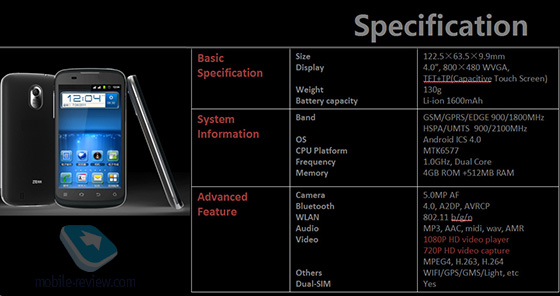
ZTE V889M user manual guide free pdf download instruction book online operating Setting Troubleshooting Support - ZTE V889M is a dual SIM smartphone equipped with a dual-core 1 GHz processor and 4-inch capacitive touchscreen display. Increased capacity in some sectors create more expensive than the type V790.

Not only more extensive, embedded resolution is also much better with 480 x 800 pixels. In addition to the purposes snap the picture, you can enjoy a 5 MP camera with auto focus, LED flash. Record 720p HD video also.
ZTE V889M
ZTE Image
Just like V790 type, this type is supported by the Android ICS. On storage media, ZTE V889M give room for 4 GB and 512 MB ​​RAM. Plus microSD up to 32 GB for free users save games or all sorts of applications. While this has not obtained a quote and availability of two new models.

Specifications ZTE V889M:

Network: GSM 900/1800 - SIM 1 and SIM 2, HSDPA 900/2100; Dimensions: 120.5 x 63.6 x 11.9 mm Screen: TFT, capacitive touchscreen, 480 x 800 pixels, 4 inches; Main camera: 5 MP, 2592? 1944 pixels, autofocus, Geo-tagging, video, Memory: 4 GB storage, 512 MB RAM, microSD up to 32 GB; OS: Android OS, v4.0; Processor: MediaTek MT6577, Dual-core 1 GHz; Transfer data: HSDPA , HSUPA Connectivity: Wi-Fi 802.11 b / g / n, Wi-Fi hotspot, Bluetooth v2.1 with A2DP, microUSB v2.0 other Features: Dual SIM, A-GPS, SNS integration, MP4/H.263 / H.264/WMV player, MP3/eAAC + / WMA / WAV player, Google Search, Maps, Gmail, YouTube, Calendar, Google Talk, Document viewer, Photo viewer / editor, Voice memo / dial; Battery: Li-Ion 1650 mAh;
[ Reguest ZTE V889M User manual Here ]